LinkedIn Carousels Are Eating the Feed: Why & How to Make One
LinkedIn carousels get 3-4× more impressions than text. Why they win, plus a 3-step guide to making one without Canva using an AI carousel builder.
Table of Contents
- Why LinkedIn Carousels Are Gaining Popularity (And How to Get More Reach)
- 1. Dwell time = algorithm fuel
- 2. Saves and shares
- 3. Clear, scannable value
- Step 1: Set Your Topic and Angle (The Foundation of Great LinkedIn Carousel Ideas)
- Step 2: Choose Your Content Angle (LinkedIn Carousel Template for Engagement)
- Step 3: Set Style, Slide Count, and Your Branding
- From Builder to Feed

Grow your LinkedIn/X
audience now
AI-powered content creation and scheduling for LinkedIn & X.
Try Propelr for FreeText posts get a quick scroll. Videos get a skip. But LinkedIn carousels — those swipeable document posts — keep people on your content for 30 to 60 seconds. That's not a small detail. It's why LinkedIn carousel reach keeps outperforming other formats and why everyone is asking how to create a LinkedIn carousel that actually gets engagement.
If you've been wondering why founders and recruiters are suddenly posting carousels, or how to make a LinkedIn carousel post without spending hours in Canva, this guide is for you. We'll cover why carousels are winning the algorithm, then walk through how to create LinkedIn carousels in 3 steps using Propelr's Carousel Builder — with the same interface you'll see in the product.
Why LinkedIn Carousels Are Gaining Popularity (And How to Get More Reach)
LinkedIn offers several content types: short text, long-form articles, images, video, and document posts (carousels). Among them, LinkedIn carousel posts stand out for three reasons — and understanding them is the first step to getting more reach on LinkedIn with carousels.
1. Dwell time = algorithm fuel
When someone opens a carousel and swipes through 7–10 slides, they're spending real time with your content. The algorithm treats that as a strong signal: this is valuable. Compare that to a text post, which is often scanned in a few seconds. Carousels naturally encourage dwell time, and the algorithm rewards it with more reach. Document posts routinely see 3–4× more reach than standard posts — and that gap is holding in 2026.
2. Saves and shares
People save carousels to reference later — frameworks, step-by-step playbooks, lists. Saves tell the algorithm your content has long-term value, which can trigger a second wave of distribution. Carousels also get shared in DMs and reposted with commentary, which extends reach beyond your immediate network.
3. Clear, scannable value
A well-built carousel delivers one idea per slide: a headline, a few bullets, or a simple takeaway. That makes it easy to consume and easy to remember. For thought leaders and B2B creators, carousels are an ideal format for teaching — frameworks, mistakes, lessons, data — without asking for a long read or a full video.
So carousels aren't just another format. They're the format that aligns best with how the LinkedIn algorithm and users behave today. The next step is creating LinkedIn carousels without Canva — or any design tool. That's where an AI LinkedIn carousel generator like Propelr's Carousel Builder comes in: AI writes your slides, you export your LinkedIn carousel as PDF, and you post the document natively on LinkedIn. Here's how to create a LinkedIn carousel in 3 steps.
Step 1: Set Your Topic and Angle (The Foundation of Great LinkedIn Carousel Ideas)
The first screen in the Carousel Builder is where you tell the AI what the carousel is about and from what angle you want it written. Getting this right is one of the best LinkedIn carousel tips we can give: a clear topic + a specific angle beats a vague brief every time.
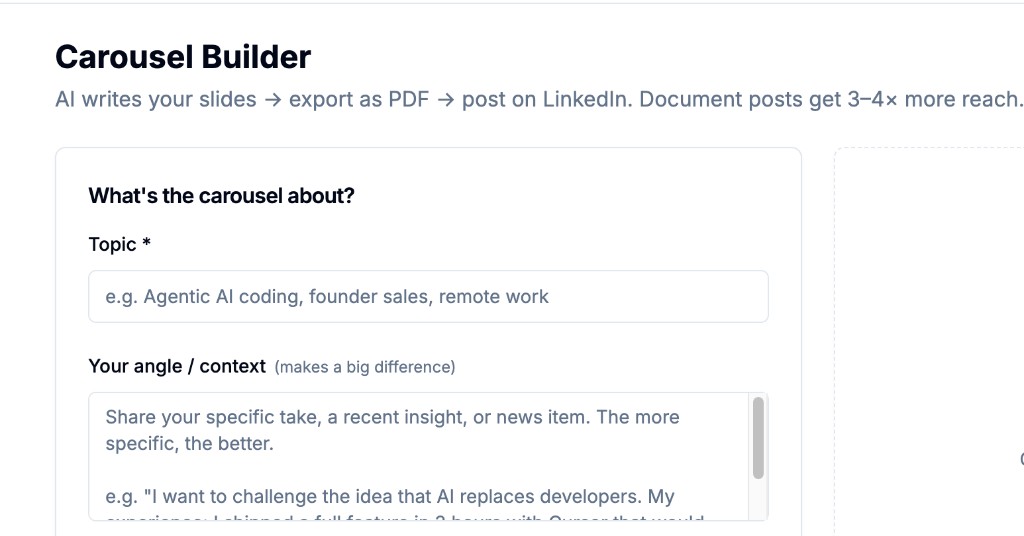
Step 1: What's the carousel about? Add your topic and your specific angle or context so the AI can write slides that sound like you.
What's the carousel about?
In the Topic field, enter the main subject. Be specific. Examples that work well:
- "Agentic AI coding"
- "Founder sales"
- "Remote work communication"
Your angle / context (makes a big difference)
This is the box that separates generic carousels from ones that feel like you. Share your specific take, a recent insight, or a news hook. The more specific, the better. For example:
- "I want to challenge the idea that AI replaces developers. My team has seen the opposite — it forces us to be clearer thinkers."
- "Most founder sales advice is for enterprise. This is for early-stage B2B with no outbound team yet."
The AI uses this to choose tone, examples, and framing. Don't skip it — a few sentences here dramatically improve the output.
Step 2: Choose Your Content Angle (LinkedIn Carousel Template for Engagement)
Next, you pick the narrative angle for the carousel. This shapes whether the deck reads like a playbook, a contrarian take, or a data-led insight — and helps you align with best LinkedIn carousel examples in your niche (playbooks, mistakes & lessons, data-led insights).
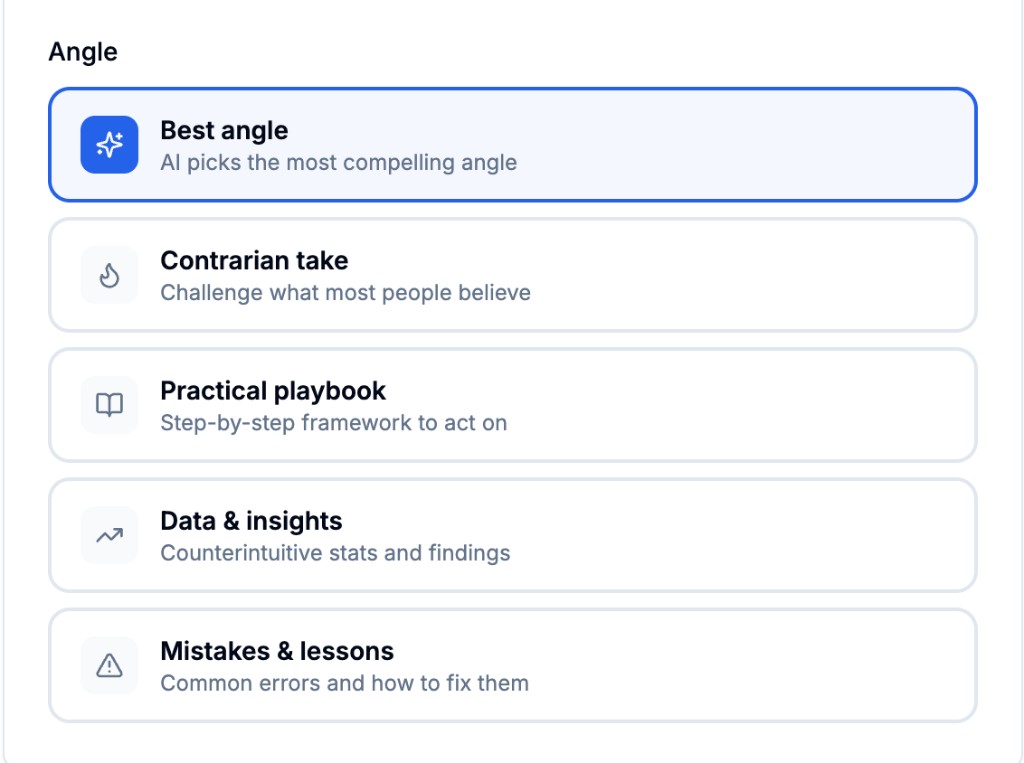
Step 2: Pick the angle that fits your goal. Best angle lets the AI choose; the others give you a clear content type.
You'll see five options:
| Angle | Best for |
|---|---|
| Best angle | Let the AI pick the most compelling angle from your topic and context. Fastest and often the strongest starting point. |
| Contrarian take | Challenge what most people believe. Good for hot takes and debate-driven engagement. |
| Practical playbook | Step-by-step framework people can act on. Ideal for how-to and "here's exactly how I do X." |
| Data & insights | Counterintuitive stats and findings. Use when you have numbers or research to share. |
| Mistakes & lessons | Common errors and how to fix them. Relatable and highly save-worthy. |
Choose one based on your goal for that carousel. If you're unsure, Best angle is a solid default — the AI will align the slides with your topic and context from Step 1.
Step 3: Set Style, Slide Count, and Your Branding
The last step before generation is style and attribution: how many slides, which theme, and how you're credited. Getting this right ensures your LinkedIn document post looks professional when people swipe through.
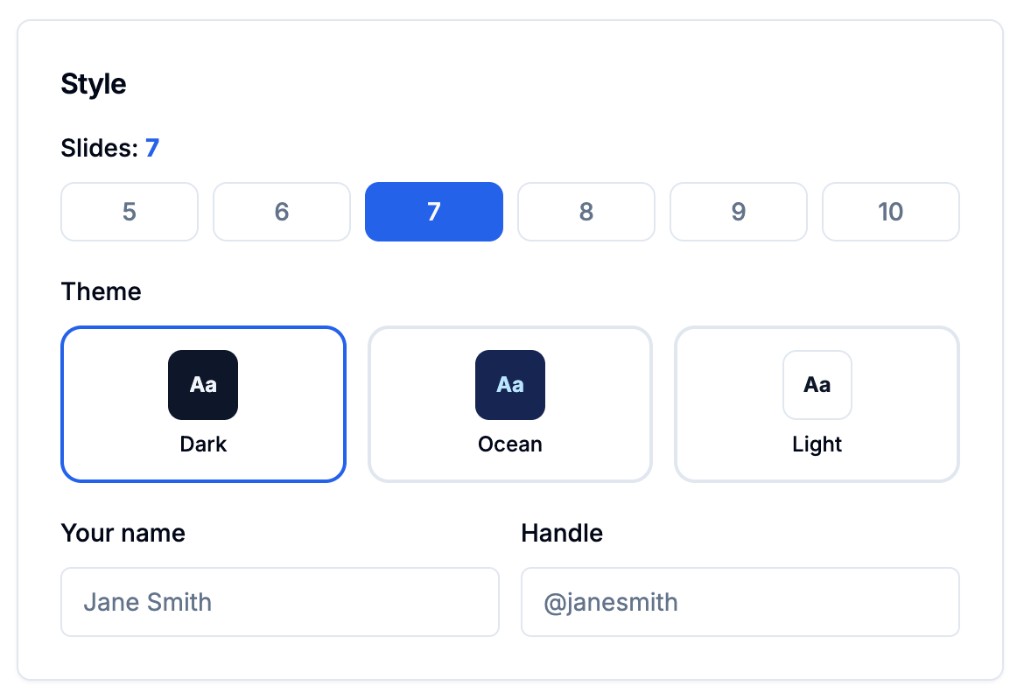
Step 3: Set the number of slides, pick a theme (Dark, Ocean, or Light), and add your name and handle for the deck.
Slides
Select how many slides you want — typically 5–10. Seven is a sweet spot: enough to develop an idea, not so many that people drop off. Use fewer (5–6) for punchy lists; use more (8–10) for full frameworks or deep dives.
Theme
Choose the visual theme:
- Dark — Dark background, light text. Strong for a bold, premium feel.
- Ocean — Blue-tinted. Professional and easy on the eye.
- Light — Light background, dark text. Clean and minimal.
Your name & handle
Enter the name and handle that appear on the carousel (e.g. "Jane Smith" and "@janesmith"). This keeps the deck clearly tied to you when it's shared or saved.
Hit generate, and the AI writes your slides. You can edit the copy, then export your LinkedIn carousel as PDF and upload the document to LinkedIn as a native document post. That format is what gets the 3–4× reach bump — so export as PDF, not as separate images. LinkedIn treats native document uploads (one PDF = one carousel) as the format that gets maximum LinkedIn carousel reach.
From Builder to Feed
Once you've run through Steps 1–3, you get a full carousel in minutes instead of hours. The flow is:
- Topic + angle — What you're teaching and from whose perspective.
- Angle type — Playbook, contrarian, data, mistakes, or "best."
- Style + branding — Slide count, theme, name, and handle.
Then you generate, tweak if needed, export as PDF, and post on LinkedIn. LinkedIn document posts get 3–4× more reach because they hold attention; the Carousel Builder makes it possible to create LinkedIn carousels without Canva and ship them consistently.
If you want to make a LinkedIn carousel post yourself, Propelr's Carousel Builder is available inside the app — you can create your first carousel in a few minutes with LinkedIn carousel ideas you already have.
→ Try the Carousel Builder — free credits on signup, no card required.
Stop treating carousels as a "nice to have." Treat them as the format that's eating the feed — and use an AI LinkedIn carousel generator and these LinkedIn carousel tips to build yours with a system that actually scales.
Content and growth research team at Propelr
The Propelr team publishes playbooks from inside a content platform used to create, schedule, and analyze thousands of LinkedIn and X posts. Articles are grounded in real usage data and current platform behavior, not recycled advice.
Keep reading
All posts
How Often to Post on LinkedIn in 2026 (Real Data)
Buffer's 2M-post study says post more. Everyone else says 2-5x a week. Here's why both are right, and how to find your own ceiling.
Best Time to Post on LinkedIn in 2026 (Data-Backed)
The best time to post on LinkedIn in 2026, backed by data from millions of posts. Day-by-day windows and how to find your own peak hours.
How to Write a LinkedIn Hook: 12 Formulas + Examples
How to write a LinkedIn hook that earns the 'see more' click: the 210-character rule, 12 proven hook formulas with examples, and the mistakes that kill reach.